

Introduction
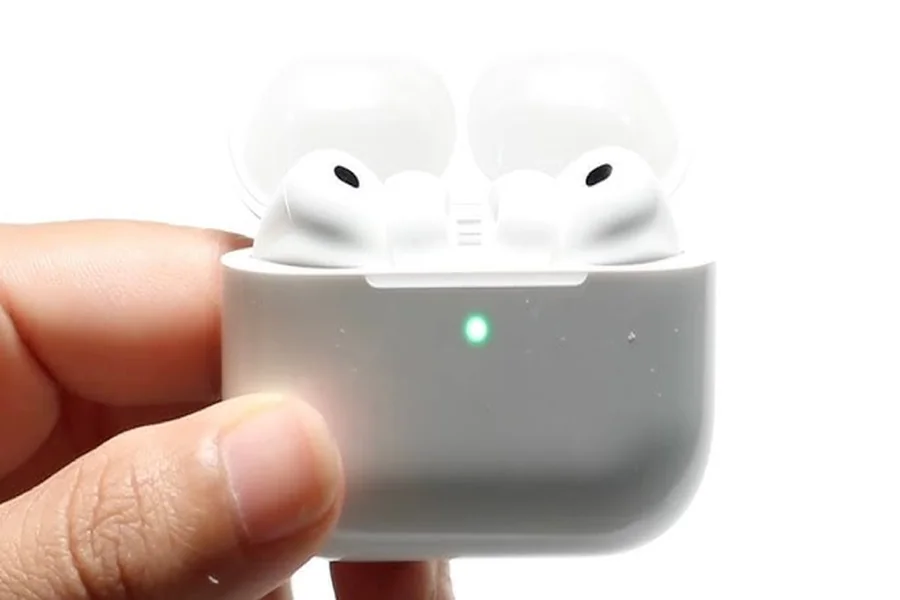
One of the most frequently asked questions by novice users when using the popular wireless earbuds created by Apple is How To Skip Songs With AirPods Pro. AirPods Pro are created to enable listening to music, podcasts, and conversations as convenient as possible, and that involves managing the playback without having to touch your phone. You can also skip all the songs, revert to older songs or even program your controls with just a few simple gestures. When you have mastered the way everything works, it is easy to control your audio.
Learning about AirPods Pro Controls
The AirPods Pro have a pressure-sensitive force sensor on the end of each earbud. This system requires soft presses instead of taps as opposed to the traditional touch controls. This design will allow you to avoid accidental inputs and have a greater degree of control.
The force sensor enables you to play, pause, skip and change the noise control modes. It is compatible with most Apple devices, such as iPhones, iPads, and Macs. The controls are user-friendly, and initially, they might seem strange when you are accustomed to other earbuds.
The initial step of mastering your AirPods Pro is to get used to the interaction that is based on pressure.
How to Skip Tracks with AirPods Pro
It is easy to skip through songs when using AirPods Pro because of the right gesture. Doubletap the force sensor to change to the next track. This two-press gesture instructs your device to fast forward.
If you want to go back to the previous track, press the force sensor three times quickly. This triple press gesture will allow you to replay a song or skip to the previous song.
To pause or play audio, press the force sensor once. These three simple controls (single, double and triple press) are the ones that will take care of the majority of your listening requirements.
It’s important to press firmly but not too hard. One simply needs to squeeze it mildly to have the sensor work and you tend to hear a small clicking sound confirming your act.
Personalizing Controls to enhance Experience
AirPods Pro can also be customized by some degree in terms of the controls of your device using the Apple settings. Although the rudimentary playback signals (such as song skipping) are fixed, other functionality can be modified.
To personalize your AirPods Pro, visit the Bluetooth settings on your iPhone, then Tap on your AirPods Pro, and select the options menu. There you have the ability to give press-and-hold capabilities to switch between noise cancellation and transparency mode.
You also have the option to turn on things such as automatic ear detection, which stops playing when you take out an earbud. Although you will not be able to switch the two or three presses to skip songs, these extra features add value to your experience.
It is also essential to update your firmware to make sure that your AirPods Pro work well and are compatible with the latest features.
Troubleshooting Skipping Issues
In some cases, users might notice that their AirPods Pro do not play songs as desired. This may occur due to a number of reasons although most of the problems are simple to rectify.
To begin with, ensure that your AirPods are well connected to your device. There is a possibility that controls fail to work properly in case of an unstable connection. The problem can sometimes be resolved by reconnecting your AirPods or restarting your device.
Second, check for dirt or debris on the force sensor. The sensor is based on physical pressure, therefore, accumulation can affect its responsiveness. Gently cleaning your AirPods with a soft cloth can make them work again.
Antiqueness of software is another typical problem. Make sure that your device and AirPods are updated. Bugs are frequently fixed and performance is enhanced with updates.
In case of issues, it might be required to reset your AirPods Pro. This is by inserting them in the case, pressing the setup button until the light goes on and then reconnecting them to your device.
How to use AirPods Pro The most efficiently
You can maximize your AirPods Pro by adopting some simple routines. To begin with, do the press gestures until you are comfortable with them. This will turn skipping songs and playing back to second nature.
Second, use Siri to control hands free. It is possible to say such commands as skip this song, play the next one, which may be particularly handy when you are busy with your hands.
Third, charge and clean up your AirPods. Periodic maintenance is a guarantee that they work well and have a longer shelf life.
Lastly, contemplate the purchase of AirPods Pro with multiple devices when you belong to the Apple environment. The seamless switching option lets you switch devices without the hassle of having to reconnect manually.
Final Thought
Knowing how to jump songs with AirPods Pro is a little but significant to maximize your listening time. The simple press controls and some practice allow you to control your music without having to touch your device at all. These features along with customization options and troubleshooting expertise make Air pods Pro convenient and powerful enough to be used on daily basis.
FAQs
How to skip songs with AirPods Pro easily?
You can skip songs by pressing the force sensor on the AirPods Pro stem twice quickly.
Can I go back to the previous song using AirPods Pro?
Yes, press the force sensor three times quickly to return to the previous track.
Why are my AirPods Pro not skipping songs?
This may be due to connection issues, dirt on the sensor, or outdated software.
Can I change the skip controls on AirPods Pro?
No, the double-press and triple-press controls for skipping songs cannot be customized.
Do AirPods Pro work with non-Apple devices for skipping songs?
Yes, basic controls like skipping songs usually work with most Bluetooth-enabled devices.
Can I use Siri to skip songs with AirPods Pro?
Yes, you can use voice commands like “skip song” to control playback hands-free.
