

Introduction
When a person wants to manage several devices using one remote, Ge Universal Remote Setup is the type of thing that he/she seeks. Rather than having to use different remotes to operate your TV, DVD player, streaming device, or sound system, a GE universal remote can make all the functions of these devices one convenient control. Although it might sound complicated initially to install it, the actual procedure is quite simple as long as you know the steps and procedures at your disposal. This guide will take you through all that you need to know to get your remote working.
How GE Universal Remotes Work
GE universal remotes are developed in a way that they communicate with various electronic devices based on pre-programmed codes. Every brand and model of device possesses a certain set of codes that enable the remote to operate the device correctly. Once you key in the correct code in your remote it connects with your device and allows it to work fully.
Such remotes usually have the capability to control TVs, DVD and Blu-ray players, streaming devices and even certain audio systems. It can have a variety of devices and can easily switch between them depending on the model.
The trick to a successful set up is to select the correct method of programming and input the correct code to your device.
GE Universal Remote Set-up Methods
Your GE universal remote can be configured in a number of ways and each of the ways can be applied in various circumstances. The most used ones are direct code entry, auto code search and manual code search.
The quickest way is to enter the code directly when you know the correct code of your device. Auto code search will be useful when you are not aware of the code because the remote tries the possible options automatically. Manual code search is more controllable, but a little more patient is required.
The selection of the correct method relies on your circumstances and the amount of information you already possess concerning your device.
Code-based Step-by-Step Set-Up
In order to configure your GE universal remote with codes, the first thing to do is to make sure that the device you wish to control is turned on. This could be your TV or any other compatible device.
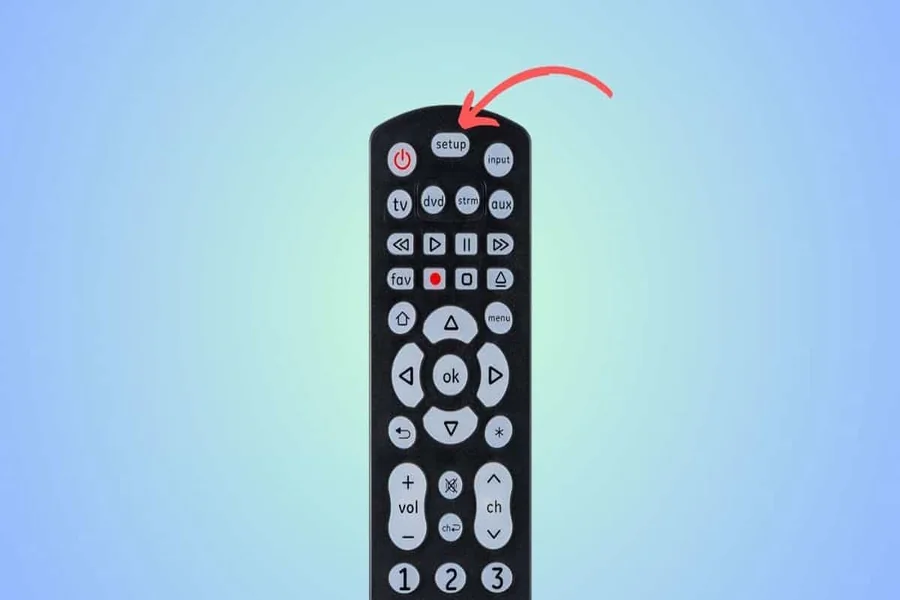
Then, release the remote button and press and hold the setup button until the indicator light is on. Next, tap the button according to your type of device, e.g., TV or DVD.
Use the number buttons to enter a code to your device. Once the code has been entered, the indicator light ought to go off. Check the remote by pressing the power button or volume controls, to test whether it works.
When the device fails to respond, use another one of the codes in the list. It might require a couple of tries to locate the right one, and it should work with your remote.
Auto Code Search Method
In case you do not have the device code, auto code search method is an excellent option. To begin with, you need to switch on your device and press on the button marked set up until the light remains on.
Then press device button, e.g. TV. Then, press the power button repeatedly until your device is switched off. This is to imply that the remote has located an appropriate code.
After turning off the device, press the button with an inscription Enter or OK to save the code. Restart the device and check the remote to make sure everything is functioning.
This method may take a bit longer, but it’s very effective when you don’t have access to code lists.
Troubleshooting Common Issues
Even after taking the steps, sometimes, your remote will fail to work. A typical pitfall is to use incorrect code. In case your device reacts only partially, use another one of the codes.
Another problem could be weak batteries. New batteries should always be in your remote prior to the process of set up.
In case the remote is not turning on at all, then reset the remote by taking out the batteries and pushing all the buttons to get rid of any leftover energy. Then replace new batteries and retest.
Ensure that there is no interference between the device and the remote, which may interfere with transmission of signals. Cleaning your remote and keeping it in good condition is also a way to ensure its performance.
Remote Performance tips
In order to make the most of your GE universal remote there are a few tips that would help you to remember. To prevent loss or damage, always keep your remote in a safe location.
Naming your devices or knowing which button does what device can save on time when changing between them. The device codes are also saved by some of the users as a reference in future.
Check the batteries on a regular basis and change batteries when necessary so that the performance can be consistent. When you add a new device to your set-up, take time to program it correctly to ensure that it is easily controlled.
Regular use of your remote will also assist you to get used to its features and will be easy after some time.
Final Thought
There is no need to make a GE universal remote setup complex. It only takes a little time and proper technique to have your gadgets linked together and be able to use one remote at your convenience. Regardless of whether you enter the code manually or rely on the auto search feature, it is much easier to comprehend how it works. When installed, your remote turns out to be a potent device that makes your entertainment process easier.
FAQs
What is GE universal remote setup?
It is the process of programming a GE remote to control devices like TVs, DVD players, and other electronics.
How do I find the code for my device?
You can find device codes in the remote’s manual or on the manufacturer’s website.
What if my GE remote is not working after setup?
Try using a different code, replacing the batteries, or resetting the remote.
Can I connect multiple devices to one GE remote?
Yes, most GE universal remotes can control multiple devices.
Do I need the original remote for setup?
No, you can set up the GE remote without the original remote using codes or auto search.
How do I reset my GE universal remote?
Remove the batteries, press all buttons, then reinsert the batteries and start the setup process again.
